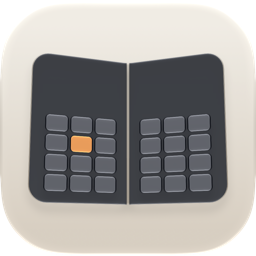
A 12-key pad on each side
Unfold your Duo and the familiar 12-key layout appears on both sides. Even on the wide screen, the keys sit right under each thumb, and either thumb flicks the same way.
 DuoFlick
日本語
DuoFlick
日本語
A Japanese flick keyboard for iPhone Duo
Coming soon to the App Store
Launching on the App Store in Japan and the US.
Try the prerelease build free with TestFlight, Apple’s app for beta testing. Coming soon to the App Store in Japan and the US.

Available on the App Store in Japan and the US.
Unfold your Duo and the familiar 12-key layout appears on both sides. Even on the wide screen, the keys sit right under each thumb, and either thumb flicks the same way.
Drag the 12-keys and the candidate bar to fit your hands. Prefer romaji? Add a QWERTY keyboard. Share any layout you make with a link.
Unfolded wide, folded like a book, held upright, or closed: set the layout you want for each. When the Duo is closed, tap ⇄ on the keyboard to shift the keys left or right on the spot.
Kana to kanji conversion happens on your iPhone. Turn on AI conversion (off by default) and a small model reads the text before your cursor to pick the right words. On a 200-sentence test set, it raised the number of sentences converted correctly from 75 to 107.
Conversion, learning, and AI conversion all happen on your iPhone.
The keyboard never connects to the internet. Every typing feature works without Full Access.
In Settings, go to Apps → DuoFlick → Keyboards and turn on DuoFlick. The app’s “キーボードの設定を開く” (Open keyboard settings) button takes you there too.
In any text field, touch and hold the globe key, then choose DuoFlick.
In the app’s “配置” (Layouts) screen, choose the layout to use when your Duo is unfolded, closed, and so on. The built-in layouts work well as they are.
DuoFlick types both Japanese and English, but the app’s own screens are in Japanese.
No. On other iPhones, and on a Duo that’s closed or held upright, you get a single 12-key pad. The pads on both sides appear when the Duo is unfolded wide. Folded like a book, it can show the candidate list on the left and a 12-key pad on the right.
iOS 27.1 or later.
No. Every typing feature works without it. Full Access is used only for haptics and key sounds, and to save the side you pick with ⇄ to the app’s settings. Even with Full Access, the keyboard never connects to the internet.
Yes. For English, an unfolded Duo uses a QWERTY keyboard split across both sides, and a closed Duo uses QWERTY (or a 12-key pad if you prefer). To type Japanese in romaji, choose a layout with a QWERTY keyboard.
In password fields, iOS switches to the standard keyboard automatically. In username and code fields, a key icon appears in the middle of the candidate bar. Tap it to switch to the next keyboard and pick a saved password.
Use “リンクで共有” (Share link) in the app to make a short link. Whoever opens it sees the layout and can add it to DuoFlick. Short links expire about two years after they were last shared.
Coming soon to the App Store
Launching on the App Store in Japan and the US.
Try the prerelease build free with TestFlight, Apple’s app for beta testing. Coming soon to the App Store in Japan and the US.
Available on the App Store in Japan and the US.